

What is a Good Image Resolution for Printing?
start with the
perfect amount of pixels. To achieve crystal clear images,
check to see the optimum amount of pixels needed for
each print size using our pixel size chart below.
Best Resolutions for Printing Pictures
When it comes to printing pictures, knowing the best resolution for each print size ensures your images turn out sharp, not blurry or pixelated. Check out our Image resolution guide for more in-depth tips and explanations.
| PRINT SIZE | 125 PPI | 180 PPI | 300 PPI |
|---|---|---|---|
| 3.5x5 | 438x625 | 630x900 | 1050x1500 |
| 4x4 | 500x500 | 720x720 | 1200x1200 |
| 4x5 | 500x625 | 720x900 | 1200x1500 |
| 4x6 | 500x750 | 720x1080 | 1200x1800 |
| 4x8 | 500x1000 | 720x1440 | 1200x2400 |
| 4x9 | 500x1125 | 720x1620 | 1200x27000 |
| 4x12 | 500x1500 | 720x2160 | 1200x3600 |
| 5x5 | 625x625 | 900x900 | 1500x1500 |
| 5x7 | 625x875 | 900x1260 | 1500x2100 |
| 5x10 | 625x1250 | 900x1800 | 1500x3000 |
| 5x15 | 625x1875 | 900x2700 | 1500x4500 |
| 6x8 | 750x1000 | 1080x1440 | 1800x2400 |
| 6x9 | 750x1125 | 1080x1620 | 1800x2700 |
| 7x10 | 875x1250 | 1260x1800 | 2100x3000 |
| 8x8 | 1000x1000 | 1440x1440 | 2400x2400 |
| 8x10 | 1000x1250 | 1440x1800 | 2400x3000 |
| 8x12 | 1000x1500 | 1440x2160 | 2400x3600 |
| 8x16 | 1000x2000 | 1440x2880 | 2400x4800 |
| 8x20 | 1000x2500 | 1440x3600 | 2400x6000 |
| 8x24 | 1000x3000 | 1440x4320 | 2400x7200 |
| 8x.5x11 | 1063x1375 | 1530x1980 | 2550x3300 |
| 9x12 | 1125x1500 | 1620x2160 | 2700x3600 |
| 10x10 | 1250x1250 | 1800x1800 | 3000x3000 |
| 10x12 | 1250x1500 | 1800x2160 | 3000x3600 |
| 10x13 | 1250x1625 | 1800x2340 | 3000x3900 |
| 10x14 | 1250x1750 | 1800x2520 | 3000x4200 |
| 10x15 | 1250x1750 | 1800x2700 | 3000x4500 |
| 10x16 | 1250x2000 | 1800x2880 | 3000x4800 |
| 10x20 | 1250x2500 | 1800x3600 | 3000x6000 |
| 10x26 | 1250x3250 | 1800x4680 | 3000x7800 |
| 10x30 | 1250x3750 | 1800x5400 | 3000x9000 |
| 11x14 | 1375x1750 | 1980x2520 | 3300x4200 |
| 11x17 | 1375x2125 | 1980x3060 | 3300x5100 |
| 12x12 | 1500x1500 | 2160x2160 | 3600x3600 |
| 12x16 | 1500x2000 | 2160x2880 | 3600x4800 |
| 12x18 | 1500x2250 | 2160x3240 | 3600x5400 |
| 12x20 | 1500x2500 | 2160x3600 | 3600x6000 |
| 12x24 | 1500x3000 | 2160x4320 | 3600x7200 |
| 12x36 | 1500x4500 | 2160x6480 | 3600x10800 |
| 13x20 | 1625x2500 | 2340x3600 | 3900x6000 |
| 14x14 | 1750x1750 | 2520x2520 | 4200x4200 |
| 14x22/td> | 1750x2750 | 2520x3960 | 4200x6600 |
| 15x30 | 1875x3750 | 2700x5400 | 4500x9000 |
| 16x16 | 2000x2000 | 2880x2880 | 4800x4800 |
| 16x20 | 2000x2500 | 2880x3600 | 4800x6000 |
| 16x24 | 2000x3000 | 2880x4320 | 4800x7200 |
| 18x24 | 2250x3000 | 3240x4320 | 5400x7200 |
| 20x20 | 2500x2500 | 3600x3600 | 6000x6000 |
| 20x24 | 2500x3000 | 3600x4320 | 6000x7200 |
| 20x30 | 2500x3750 | 3600x5400 | 6000x9000 |
| 20x40 | 2500x5000 | 3600x7200 | 6000x12000 |
| 22x28 | 2750x3500 | 3960x5040 | 6600x8400 |
| 24x24 | 3000x3000 | 4320x4320 | 7200x7200 |
| 24x30 | 3000x3750 | 4320x5400 | 7200x9000 |
| 24x36 | 3000x4500 | 4320x6480 | 7200x10800 |
| 30x30 | 3750x3750 | 5400x5400 | 9000x9000 |
| 30x40 | 3750x5000 | 5400x7200 | 9000x12000 |
| 30x45 | 3750x5625 | 5400x8100 | 9000x13500 |
| 8 Mini Wallets | 219x313 | 315x450 | 525x750 |
| 16 Mini Wallets | 219x313 | 315x450 | 525x750 |
| 4 Wallets | 313x438 | 450x630 | 750x1050 |
| 8 Wallets | 313x438 | 450x630 | 750x1050 |
| 16 Wallets | 313x438 | 450x630 | 750x1050 |
| 8 Die Cut Wallets | 289x414 | 416x596 | 694x994 |
| 8 Signature Wallets | 313x438 | 450x630 | 750x1050 |
| 8 Die Cut Signature Wallets | 289x414 | 416x596 | 694x994 |
Pixel Chart
What is image resolution?
An image's resolution refers to the number of pixels (small squares of information) contained in an image. An image with high resolution is made up of many small pixels, while an image with low resolution contains a smaller number of larger pixels. Resolution (pixels) cannot be added to an image once it is captured by enlarging the image, it can only be removed.
An image’s resolution impacts its appearance in both digital and print form.
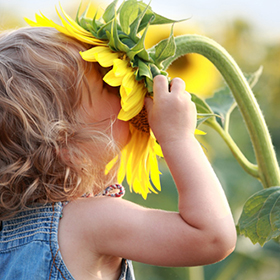
Sample of 4x6" Orubt at 300ppi
(1200x1800 Pixels)
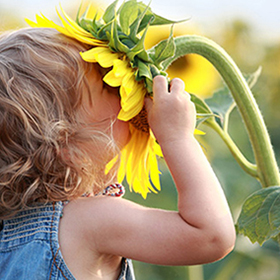
Sample of 4x6" Orubt at 180ppi
(720x1080 Pixels)
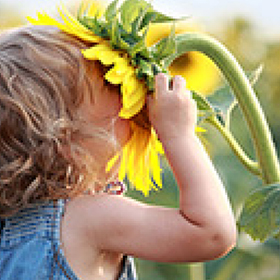
Sample of 4x6" Orubt at 72ppi
(288x432 Pixels)
Impact of high vs. low resolution on a digital form:

Sample of Original
(1800x1200 Pixels)
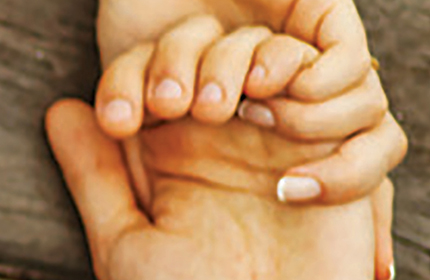
Sample of Image After Being Enlarged
to 9000x6000 Pixels
How is image resolution measured?
PPI (Pixels Per Inch) measures the resolution of a digital image (on a computer, camera, or a mobile device). The higher the PPI, the higher the resolution of the image will be, and the clearer the image will appear when printed.
DPI (Dots Per Inch) measures the resolution of a printed image, and indicates the number of ink dots per inch within an image. We calibrate our professional printers with expert precision to ensure that high resolution images (125 PPI or higher) print beautifully.
How can I check my image’s resolution?
On a PC:
- Right click on your image, and select "Properties".
- Click the "Details" tab.
- Your photo dimensions and image resolution will listed under "Image."
On a Mac:
- Highlight the digital file on your computer.
- Press command+i to Get Info.
- Locate Dimensions under More Info.
In a web browser:
- Right click (PC) or Ctrl+click (Mac) on your image.
Internet Explorer: Select "Properties"
Firefox: Choose "View Images Info.""
Safari: Ctrl+click to save the image and view the proerties on your desktop.
Chrome: "Properties" Such as "Image Resolution" that will allow you to view image properties within the browser.
On a mobile device:
Apple iPhone X
- Download an app such as "image Size" or upload the photos to a computer.
Samsung Galaxy S6-S9
- Open your gallery and select your photo.
- Click on "More," and then select "Details."
- Resolution details will be listed under "Properties."
Google Pixel
- Open Google Photos.
- Tap the More menu in the upper right corner, and select "info."
In Adobe Photoshop:
- Click the "Image" dropdown in the menu of Adobe Photoshop.
- Select "Image Size".
In Adobe Lightroom:
- Click the "Window" dropdown.
- Select the "Library" module.
- Select your photo.
- Resolution details will be listed under "Metadata."
Make sure your photos are pixel perfect. Head to our Pixel Chart and see the right amount of pixels you need for your Prints.
How large can I print an image taken on my camera?
Use the Pixel Chart to determine the resolution requirements for your chosen print size!
NOTE: Additional factors, including camera settings, zooming, lighting, and cropping can affect the quality of a printed image. Therefore, these resolution guidelines alone do not guarantee a high quality print.
How large can I print an image taken on my mobile device?
Printing photos taken on a mobile device? Use this guide to order the right size print for your smartphone photos.
iPhone (Rear Camera)
Version |
Megapixel |
Print Up to: |
| 4/ 4s | 8 | 8 x 10 |
| 5/ 5s | 8 | 8 x 10 |
| 5/ 5s Plus | 8 | 8 x 10 |
| 6/ 6s | 12 | 11 x 14 |
| 6/ 6s Plus | 12 | 11 x 14 |
| 7/ 7s | 12 | 11 x 14 |
| 7/ 7s Plus | 12 | 11 x 14 |
| 8/ 8s | 12 | 11 x 14 |
| 8/ 8s Plus | 12 | 11 x 14 |
| X | 12 | 11 x 14 |
| XS | 12 | 11 x 14 |
| XS Max | 12 | 11 x 14 |
| XR | 12 | 11 x 14 |
iPhone (Front Facing Camera)
Version |
Megapixel |
Print Up to: |
| 4/ 4s | 1.4 | Standard Wallet |
| 5/ 5s | 1.2 | Standard Wallet |
| 5/ 5s Plus | 1.2 | Standard Wallet |
| 6/ 6s | 5 | 6 x 9 |
| 6/ 6s Plus | 5 | 6 x 9 |
| 7/ 7s | 7 | 8 x 10 |
| 7/ 7s Plus | 7 | 8 x 10 |
| 8/ 8s | 7 | 8 x 10 |
| 8/ 8s Plus | 7 | 8 x 10 |
| X | 7 | 8 x 10 |
| XS | 7 | 8 x 10 |
| XS Max | 7 | 8 x 10 |
| XR | 7 | 8 x 10 |
Samsung (Rear Facing Camera)
Version |
Megapixel |
Print Up to: |
| S5 | 16 | 11 x 14 |
| S6 | 16 | 11 x 14 |
| S7 | 12 | 11 x 14 |
| Note 4 | 16 | 11 x 14 |
| Note 5 | 16 | 11 x 14 |
| Note 7 | 12 | 11 x 14 |
| S9 | 12 | 11 x 14 |
| S9+ | 12 | 11 x 14 |
| Note 9 | 12 | 11 x 14 |
Samsung (Front Facing Camera)
Version |
Megapixel |
Print Up to: |
| S5 | 2.1 | 4 x 6 |
| S6 | 5 | 6 x 9 |
| S7 | 5 | 6 x 9 |
| Note 4 | 3.7 | 5 x 7 |
| Note 5 | 5 | 6 x 9 |
| Note 7 | 5 | 6 x 9 |
| S9 | 8 | 8 x 10 |
| S9+ | 8 | 8 x 10 |
| Note 9 | 8 | 8 x 10 |
Google Pixel (Rear Facing Camera)
Version |
Megapixel |
Print Up to: |
| Pixel | 12.2 | 11 x 14 |
| Pixel XL | 12.2 | 11 x 14 |
| Pixel 2 | 12.2 | 11 x 14 |
| Pixel 2 XL | 12.2 | 11 x 14 |
Google Pixel (Front Facing Camera)
Version |
Megapixel |
Print Up to: |
| Pixel | 8 | 8 x 10 |
| Pixel XL | 8 | 8 x 10 |
| Pixel 2 | 8 | 8 x 10 |
| Pixel 2 XL | 8 | 8 x 10 |
NOTE: Additional factors, including camera settings, zooming, lighting, and cropping can affect the quality of a printed image. Therefore, these resolution guidelines alone do not guarantee a high quality print. These recommendations apply to photos taken with the camera application of a smartphone or other mobile device. Screenshots from other applications are typically of a lower quality when printed.
How do I convert inches to pixels?
You don’t need to do any converting! For questions about how many pixels are in your desired Photo Print size, check out our Pixel Chart.
What are some other elements that affect my image’s resolution?
It's important to note that your printed image’s appearance in print may be affected by more than the number of pixels in the image:
LIGHTING
Well-lit images will contain more visual detail than darker images (especially for photos taken on a phone).
DIGITAL ZOOM
Using a digital zoom feature will crop a portion of the image, and then enlarge it back to size. Image quality will be reduced relative to the original photo.
ENLARGED PHOTOS
Increasing the size of an image will not increase its resolution accordingly. For instance, increasing the size of a photo 200% will cause the pixels within the image to become twice as large, resulting in a larger, but lower quality image.
Is it possible to create a high quality, large format print from a smartphone photo?
This photo was taken using the rear-facing camera of a Samsung Galaxy S6 in natural sunlight. Once taken, this photo was not enlarged or cropped. It looks vibrant and sharp, even printed at 24x36"!

Do I have any options to print a low resolution image?
Select a small Photo Print size. The smaller the number of pixels, the smaller the space within which they should be printed.
Choose a Photo Print or product with a textured surface. Products such as Canvas Prints and Linen Textured Prints have a unique surface that can hide imperfections better than Prints and products with a smooth surface.
Increase the viewing distance of the final product. If the product is intended to be viewed from far away, resolution imperfections will be harder to detect.
What’s the difference between resolution and DPI?
Resolution refers to the total number of pixels in an image, which determines its clarity and detail when printed. DPI (dots per inch), on the other hand, measures how many dots a printer will place per inch on the paper. While resolution is about the image file itself, DPI is about how that image is physically printed.
Higher DPI typically results in better quality of Photo Prints.
PPI vs DPI
PPI (pixels per inch) measures how many pixels are displayed per inch of a digital image, while DPI (dots per inch) refers to how many printed dots are placed per inch on paper. PPI affects the digital image's quality, and DPI impacts the printed version's sharpness.
How to choose between Canvas and Framed Prints?
When deciding between Canvas and Framed Prints, consider the style of your space and how you’d like your photo to be displayed. Canvas prints offer a modern, frameless look that’s lightweight and easy to hang, while framed prints give a polished, classic feel with added protection.
When deciding between Canvas and Framed Prints, consider the style of your space and how you’d like your photo to be displayed. Canvas prints offer a modern, frameless look that’s lightweight and easy to hang, while framed prints give a polished, classic feel with added protection.Think about the finish, the decor of your room, and whether you’d like the texture of canvas or the clean lines of a frame. Learn more about Canvas vs Framed Prints here.